Settings and notifications
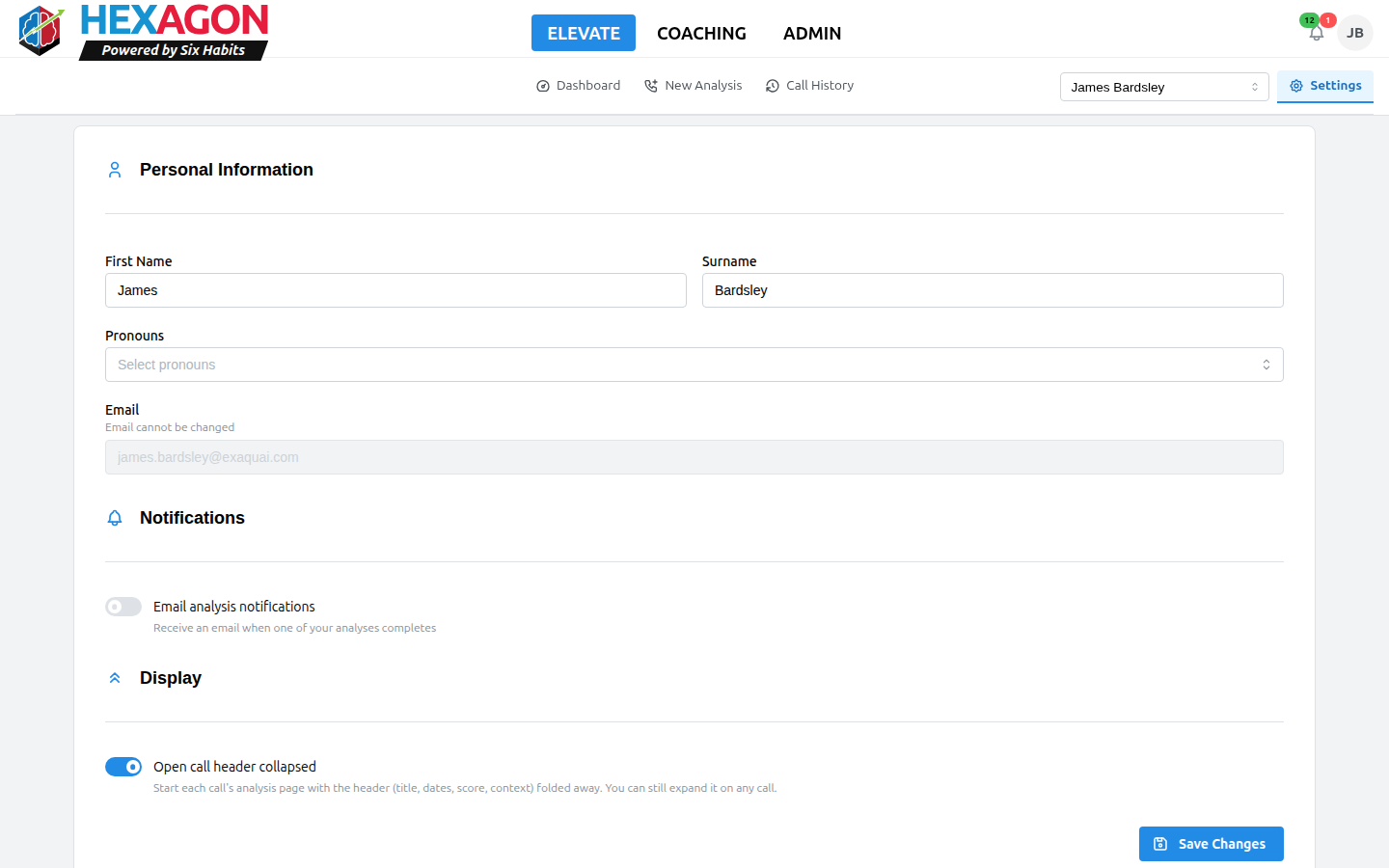
Settings is at the right-hand end of the Elevate bar, and also in the menu under your avatar. It has three short sections and a separate password panel.
Personal Information
Your first name, surname and pronouns. Your email is shown but cannot be changed here; ask an administrator if it needs changing.
Notifications
One switch: Email analysis notifications. When it is on, you get an email each time one of your analyses finishes. An administrator can set the same switch for you. In-app notifications in the bell are always on; this only controls email.
Display
Open call header collapsed is on by default. With it on, every call page opens with the header (title, dates, score, context) folded away so the tabs are the first thing you see. Expanding the header on a call never changes this default; it only applies to that visit.
Click Save Changes to keep edits to any of the three sections.
Security
To change your password, enter your current password, then the new one twice, and click Update Password. The new password must be at least 8 characters, and the sign-in service may ask for more if it judges the password too weak. You will use the new password from your next sign-in.
If you have forgotten your current password, ask an administrator to reset it; they will give you a temporary one.