Configuration
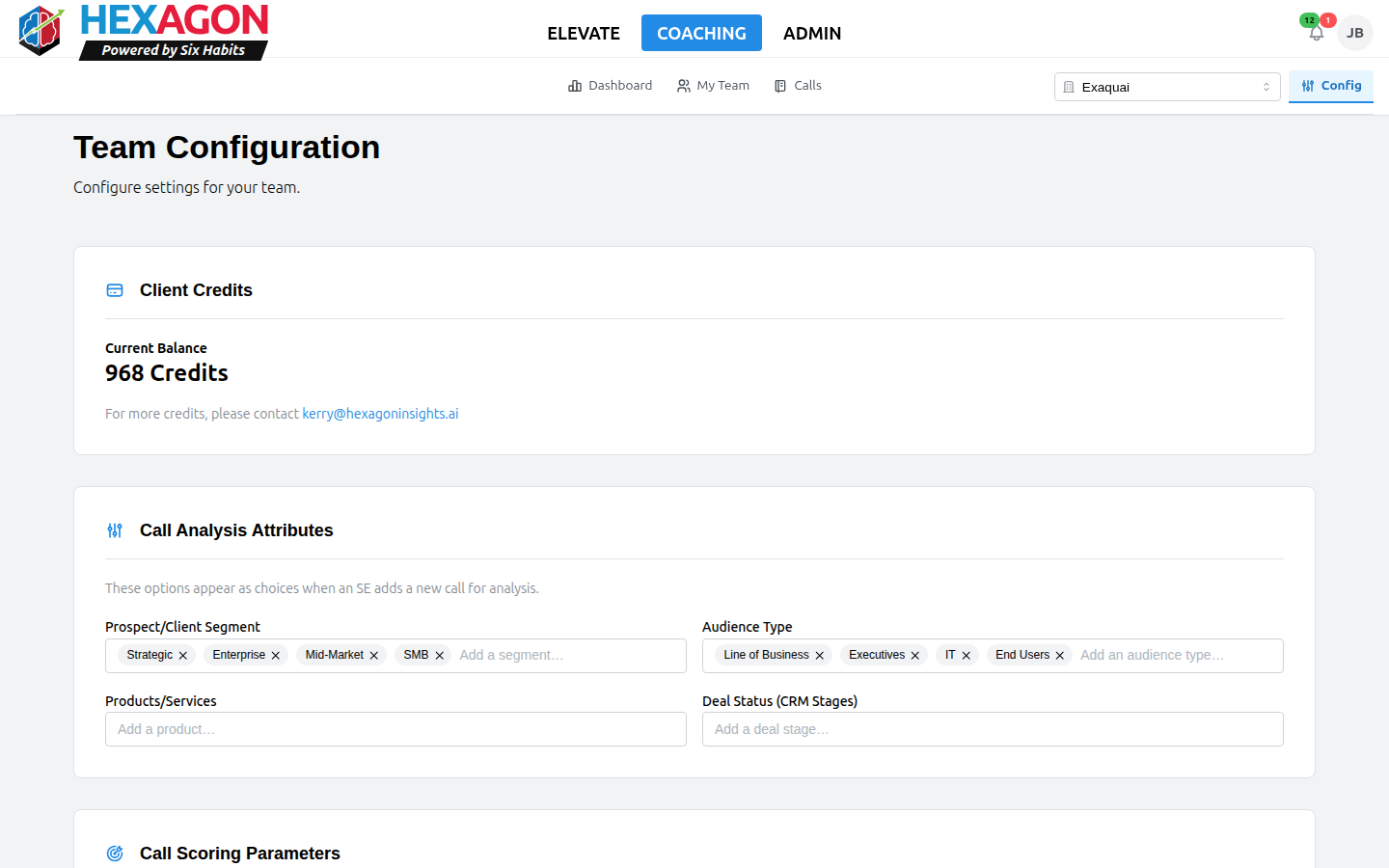
Configuration (Coaching, then Config on the right) holds the settings for your whole organisation. They affect every analysis and the dropdown choices your SEs see. SE Admins can edit it. SE Managers can read it, but every field is greyed out for them.
Everything on this page is saved together, with the Save Configuration button at the bottom.
Client Credits
The organisation's current balance. Each analysis uses one credit; re-analysing a call does not. You cannot change this section. It gives the address to contact for more credits.
Call Analysis Attributes
Four lists that become the dropdown choices on the New Analysis form. Type a value and press Enter to add it, or click the x beside a value to remove it.
| List | Used for | Default values |
|---|---|---|
| Prospect/Client Segment | The size or strategic tier of the prospect | Strategic, Enterprise, Mid-Market, SMB |
| Audience Type | Who attended from the buyer's side; a call can have several | Line of Business, Executives, IT, End Users |
| Products/Services | Your offerings, so SEs can log which ones a demo covered | none |
| Deal Status (CRM Stages) | The stage the opportunity was in at the time of the call | none |
These describe a call for reporting. They do not affect scoring.
Call Scoring Parameters
Two optional numbers, Minimum Score to Highlight and Maximum Score to Highlight, each between 0 and 4. When set, the Team Performance Summary on the team dashboard shades scores below the minimum as needing attention and scores above the maximum as exceeding expectations. Leave both empty to keep the default, which compares recent periods against all-time instead. The maximum must be at least the minimum.
Team Tags
Unlike the attributes above, these are used in the analysis itself. Every analysis counts how many times each term is mentioned in the transcript, and shows the counts on the call's Execution Snapshot tab.
- Competitor Names: rival products or companies you want tracked.
- Keyword Triggers: any other words or phrases worth counting, such as "integration" or "security".
The switch Include AI-noticed terms (on by default) lets the analysis also report competitors and keywords it notices by itself, beyond your lists. These appear separately on the call page, and a manager can add any of them to the configured list with one click. Adding a term affects future analyses only, not past ones.
Changes to Team Tags apply to analyses run after you save.