
Call history
Call History in the Elevate bar lists every call you have submitted: finished, still running, or failed. Click a row to open it. Finished calls open their results; running and failed ones open the progress page.
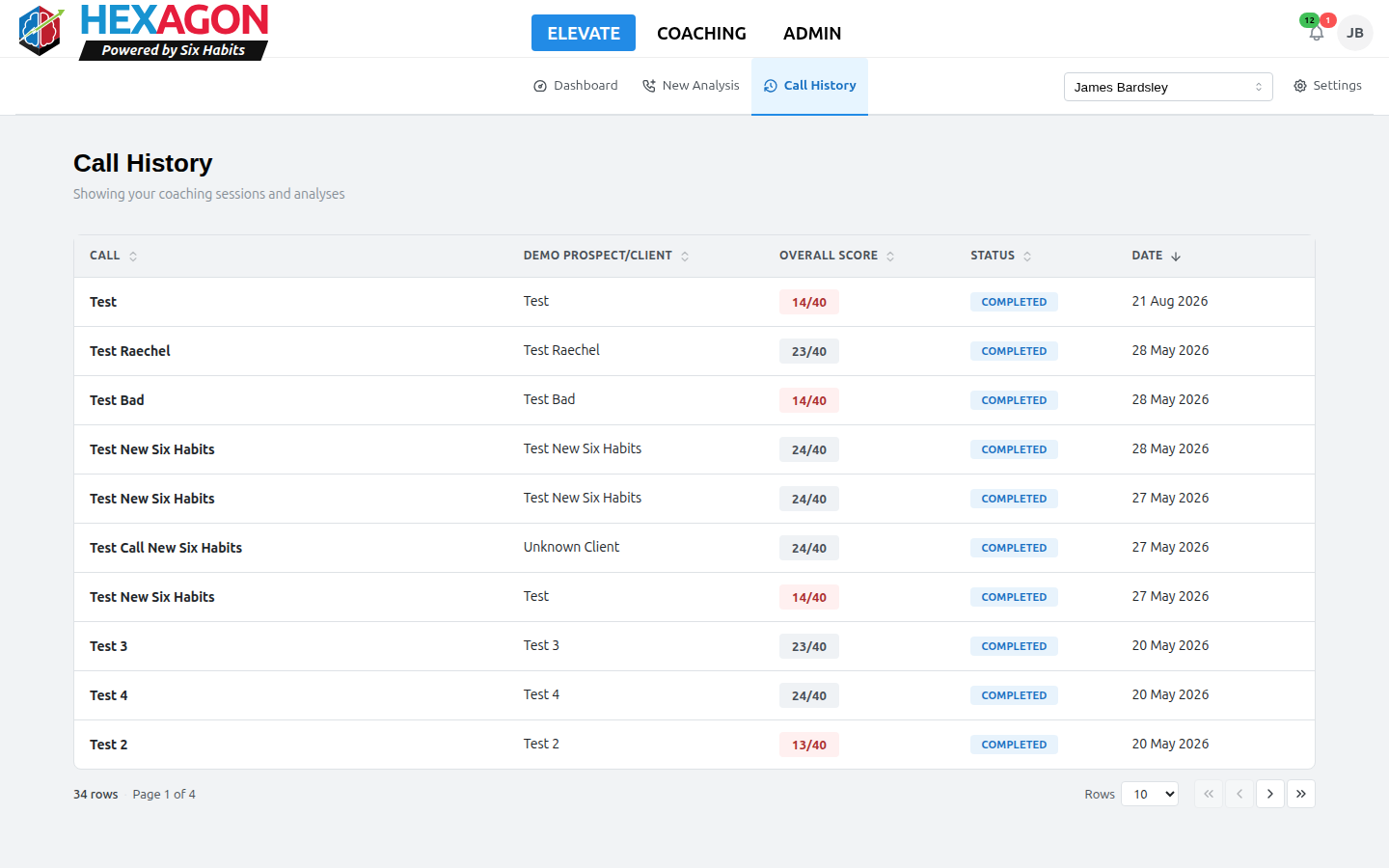
What each column means
| Column | Meaning |
|---|---|
| Call | The title you gave it |
| Demo Prospect/Client | The company the demo was for |
| Overall Score | A coloured badge, for example 28/40. A dash means no score yet |
| Status | Completed, Processing or Failed |
| Date | The call date; if none was entered, the date and time it was uploaded |
Older calls that were scored on nine metrics show a score out of 36, not 40.
Sorting and filtering
Every column header is a menu. Click it to sort ascending or descending, add the column to an existing sort, or clear sorting. On the Call, Prospect and Status columns the same menu offers Filter by, with a box that matches any part of the text. A funnel icon on the header shows that a filter is on. Click the x in the filter box to clear it.
By default, the list shows the newest calls first, ten rows to a page. Use the Rows selector at the bottom for 25, 50 or 100.
Seeing someone else's history
If you coach people, pick an SE in the top bar and the page heading changes to "Showing ‹name›'s coaching sessions and analyses". This page has no actions on its rows. To re-analyse or delete a call, use Team calls in Coaching.