
My Team
My Team (Coaching, then My Team) is where you manage people: who is in the organisation, what role they have, and which SEs are on which manager's Team. SE Managers get a read-only view of their own Team. SE Admins can make changes.
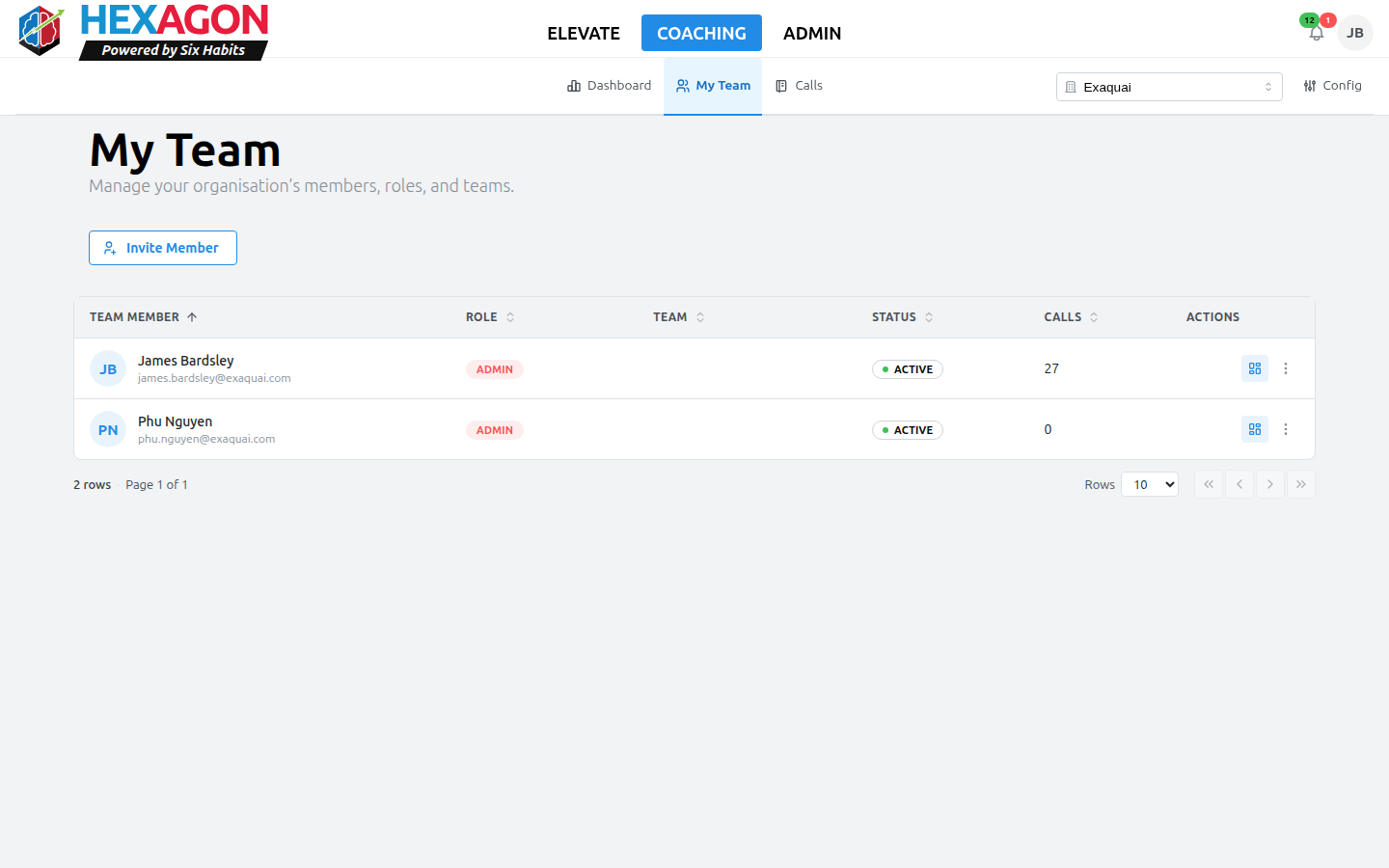
The member list
| Column | What it shows |
|---|---|
| Team Member | Avatar, name and email |
| Role | Sales Engineer, SE Manager, SE Admin or Admin |
| Team | On SE Manager rows only: a label with the Team's name. Click it to open the Team panel |
| Status | Active or Inactive |
| Calls | How many analyses the person has |
| Actions | A dashboard icon to open the member's own dashboard, and a three-dot menu |
Clicking a row opens the member's dashboard.
SE Managers see one extra column, Added, and the note "No team members assigned yet — your SE Admin manages team assignments" if nobody is on their Team yet.
Inviting someone
Invite Member (SE Admins) opens a short form: email address, first name, surname, optional pronouns, and a role of either Sales Engineer or Sales Engineer Manager. Everything except pronouns is required.
The switch Send welcome email now is on by default. The welcome email carries a temporary password for the person's first sign-in. Turn it off if you want to set the account up first and send the email later. A welcome email can only be sent before the person's first sign-in. After that, the only option is a password reset.
To make someone an SE Admin, ask the platform's administrators. That role cannot be given from this page.
Promoting and demoting
From the three-dot menu on a row:
- Promote to SE Manager turns an SE into a manager who can be given a Team. If they were on any manager's Team, they are taken off it.
- Demote to Sales Engineer does the reverse. If the manager still has a Team, demoting them removes it, and they lose access to those members' data.
You cannot promote or demote yourself.
Building a Team
Click a manager's Team label, or choose Manage team… from their menu. A panel opens beside the table with:
- A team name box. Leave it blank and the Team is shown as "‹Manager›'s team". Give it a name such as "EMEA Pre-Sales" and that name appears everywhere.
- A searchable checklist of every SE in the organisation. Tick the people who belong to this manager. Only SEs can be Team members, and an SE can be on more than one manager's Team. Someone already on another Team shows "also on ‹team›" beside their name.
- Save team saves the name and the list of members together. Reset discards unsaved changes. If you untick everyone on an existing Team, the button becomes a red Clear team.
A manager sees only their own Team in Coaching, so a change here shows immediately on their dashboard and call list.
Changing someone's details
Editing a member's name, email or role, resending a welcome email, or resetting a password is done by the platform's administrators. Ask them, and they will pass a temporary password on to you securely if one is needed. Welcome emails can only be resent before the person's first sign-in.
Deactivating someone
Deactivating someone means they are no longer on the team. It does not erase their history. An inactive user cannot sign in and disappears from pickers, dropdowns and dashboard lists, but they stay in this list, and their past calls and analyses remain visible and keep counting in team figures.