
Manager Scorecard and Notes
The AI scores every call, but you know your people. The Manager Scorecard and Manager Notes tabs on a call page let a manager add their own view on top. Both tabs appear for SE Managers and SE Admins, right after Execution Snapshot. Everything you write is private until you choose to show it.
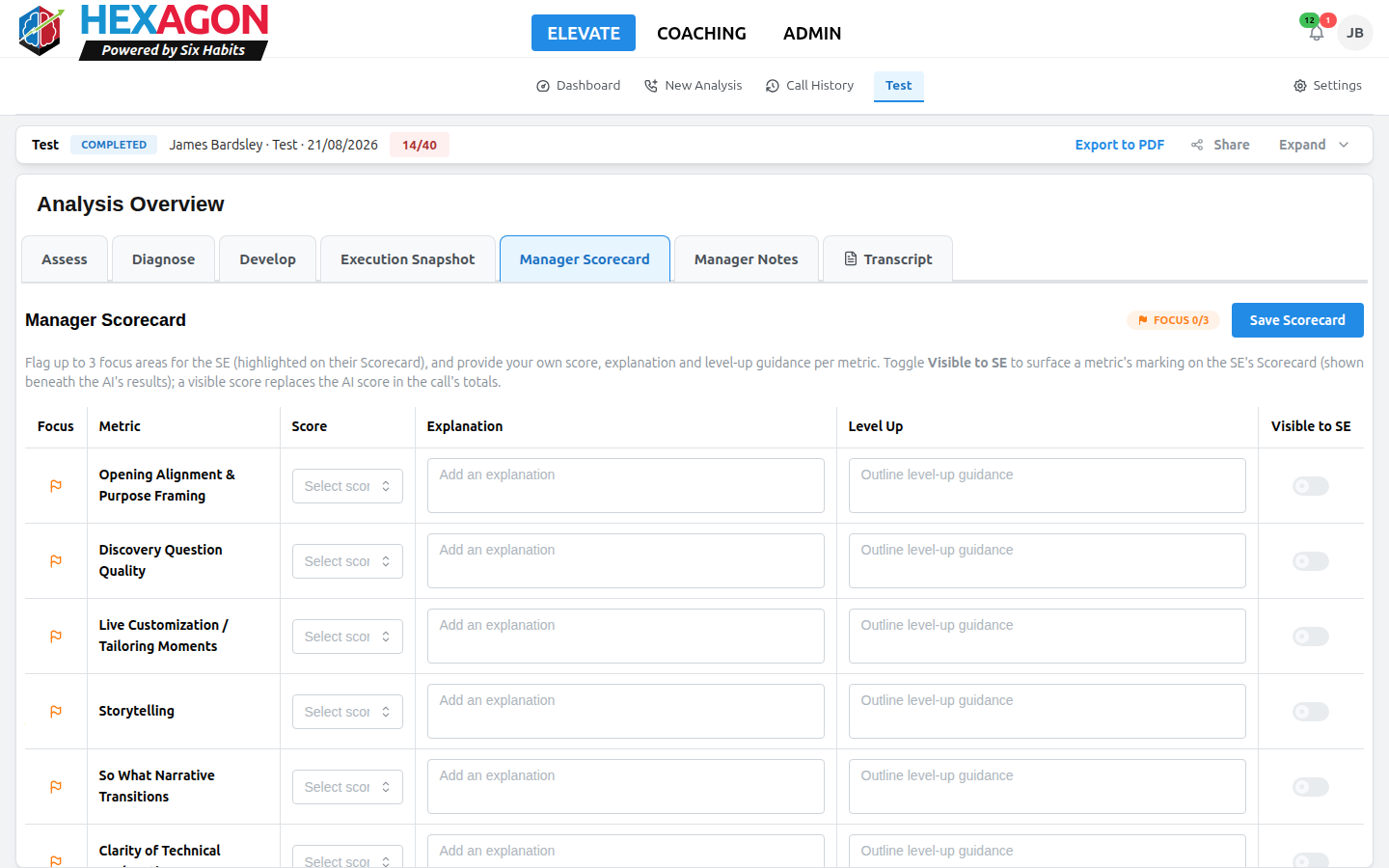
Manager Scorecard
One row per rubric metric, with six columns:
| Column | What you do with it |
|---|---|
| Focus | Flag the metric as a focus area for the SE |
| Metric | The metric's name |
| Score | Your own score: 1 Needs Improvement, 2 Emerging, 3 Meets Expectations, 4 Exceeds Expectations |
| Explanation | Why you scored it that way |
| Level Up | Concrete guidance; each line becomes its own bullet point |
| Visible to SE | Whether the SE sees this row's marks |
Fill in whichever rows you like, then click Save Scorecard. Rows you leave empty are ignored, and a saved row that you later clear is removed.
Focus areas
The flag column works differently from the rest: a flag saves the moment you click it, and it is always visible to the SE. Use it to say "work on these first". You can flag up to three metrics per call, and a badge at the top keeps count. A focus area says nothing about the score. A metric the SE did well on can still be the thing to practise next.
On the SE's Assess tab, a flagged metric gets a tinted row and a flag icon.
Visible to SE
The switch is off by default and stays greyed out until the row has a score, an explanation or some level-up text. While it is off, the row is a private note and changes nothing. Switch it on and two things happen:
- The SE sees your marks on their Assess tab, under the AI's: "Manager: 3/4", your explanation, and your level-up bullets.
- If you gave a score, it replaces the AI score for that metric in the call's total, and in every list and average built from it. The total then shows a small asterisk with the note "Includes manager scores".
A visible row without a score leaves the AI score in place. Hidden rows change nothing.
Re-analysing a call keeps all manager marks.
Manager Notes
One free-text note per call, for coaching, follow-ups or context. Write in the box and click Save Notes. The Visible to SE switch at the top of the tab is off by default; turn it on and the Manager Notes tab appears on the SE's view of the call with your note in it. SEs never see the tab while the note is hidden or empty.
If the note cannot be loaded, the tab locks itself so an existing note is not overwritten. Reload the page to try again.