
Reading a call's analysis
The call page is where you read the coaching for one call. Open any completed call from your dashboard, Call History or the bell. The page has a header at the top and five tabs below it. Managers get two more tabs, covered in Manager Scorecard and Notes. Read the tabs from left to right: Assess tells you how you scored, Diagnose tells you why, and Develop tells you what to do about it.
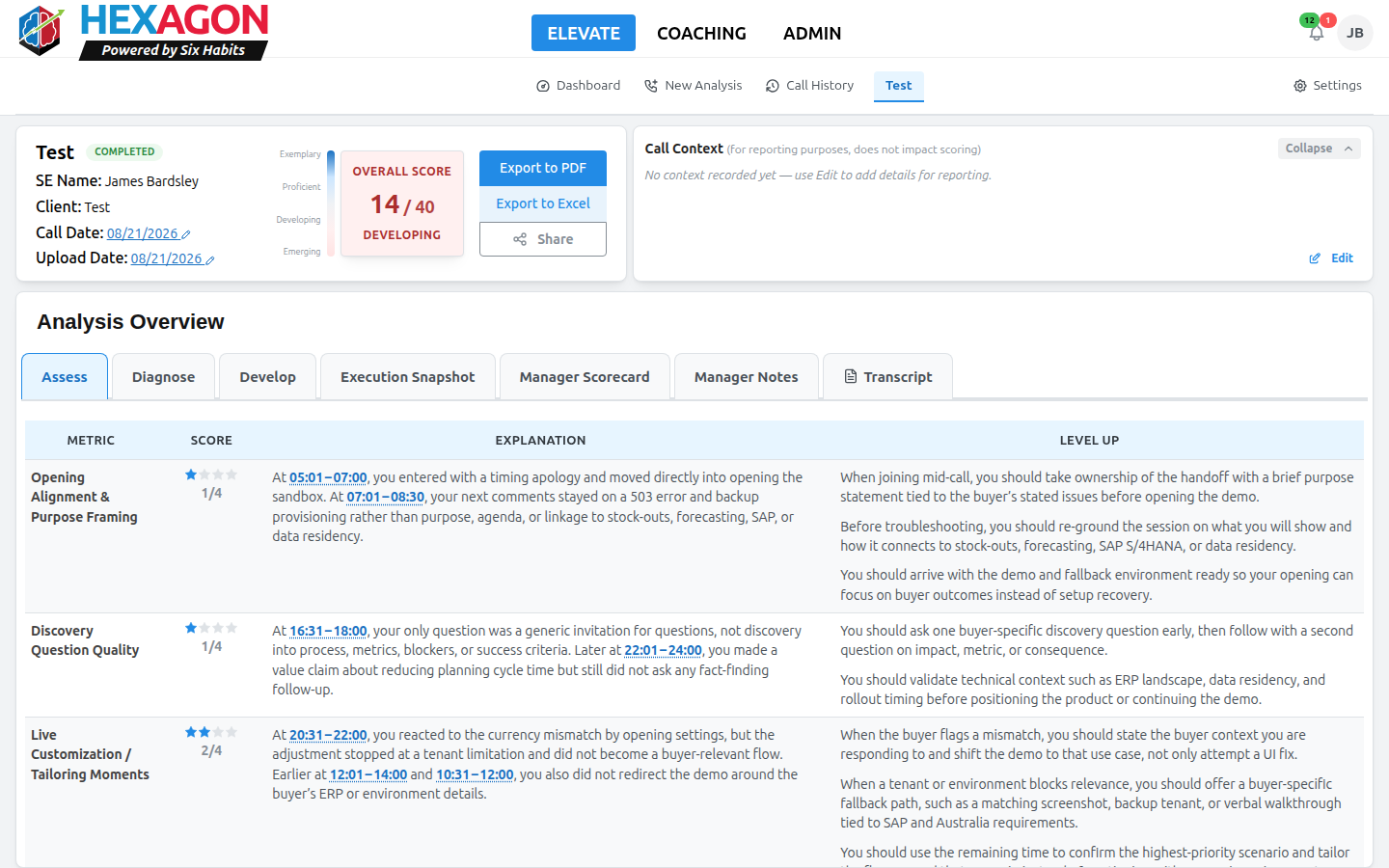
The header
By default, the header is folded to a single line: title, status, SE, client, date, the overall score, and buttons for Export to PDF, Share and Expand. Click anywhere on the line to expand it. If you prefer it open every time, turn off "Open call header collapsed" in Settings.
When the header is expanded, the left card shows the call's details and the score box. Click the call date to change it. The right card is the Call Context: the optional details from Step 2 of the New Analysis form. Edit lets you add or change them later. Context is for reporting only and never changes a score.
How scores work
Each of the ten rubric metrics is scored from 1 to 4. The overall score adds them up, so a call is out of 40. The score box also gives a level based on your average per metric:
| Average per metric | Level |
|---|---|
| 3 or more | Exemplary |
| 2 to just under 3 | Proficient |
| 1 to just under 2 | Developing |
| under 1 | Emerging |
Colour follows the score everywhere in the app, on a single scale from red through grey to blue: a 1 is a faint red tint, a 2 is neutral grey, a 3 is light blue, and a 4 is solid blue. Low scores are deliberately shown faintly, and only a 4 gets a strong colour. A number or label always sits next to the colour.
If your manager has published their own score on a metric, it replaces the AI score in the total, and a small asterisk on the total says "Includes manager scores".
Assess
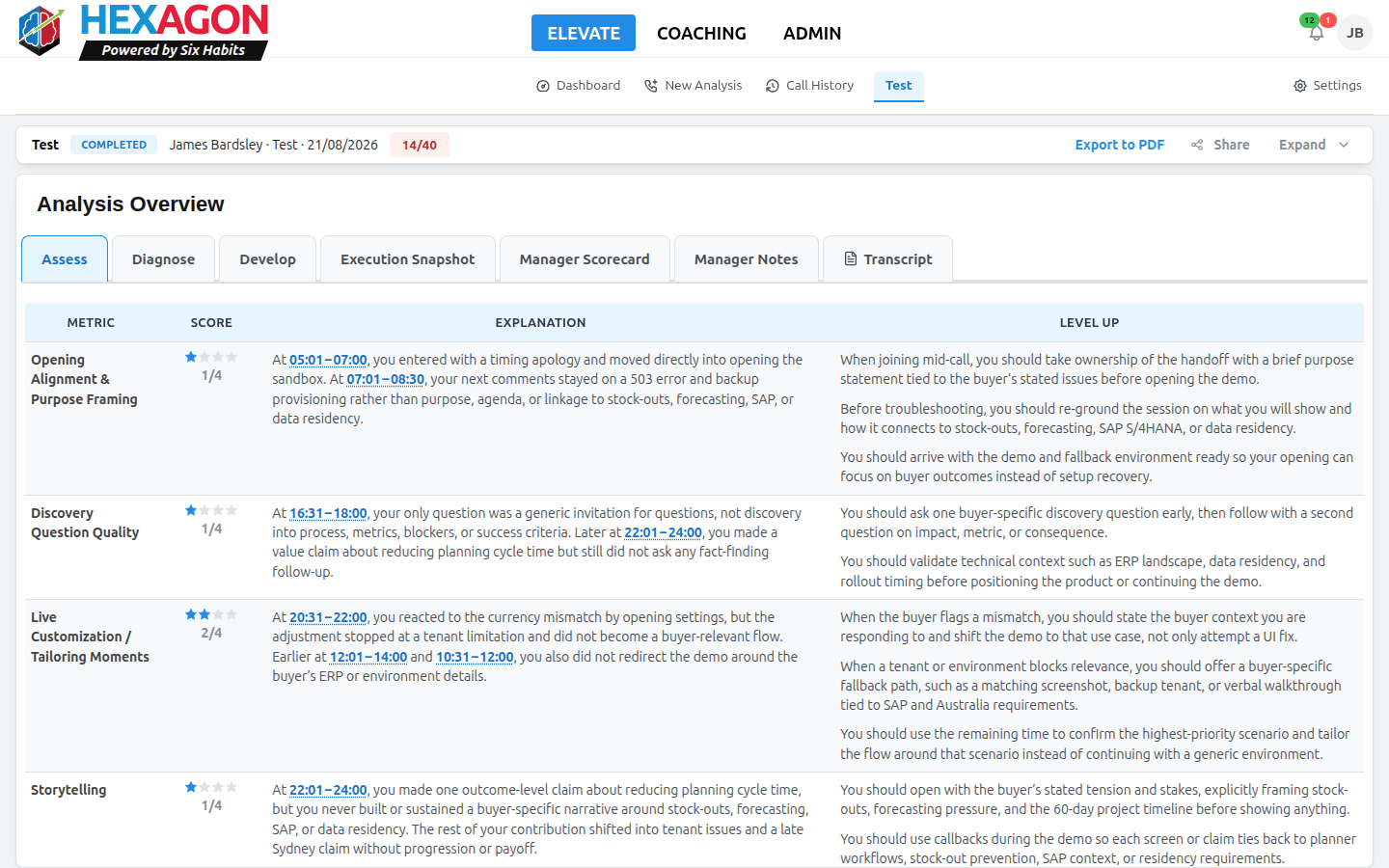
The scorecard, with one row per metric, in the order they come up in a demo call:
- Opening Alignment & Purpose Framing
- Discovery Question Quality
- Live Customization / Tailoring Moments
- Storytelling
- So What Narrative Transitions
- Clarity of Technical Explanation
- Buyer Ah-Ha Moments
- Handling of Questions
- Buyer Engagement & Check-Ins
- Closing Summary & Call-to-Action
Each row has the Score out of 4, an Explanation of why, and up to three Level Up tips. A row your manager has flagged as a focus area is tinted and has a flag icon. It means "work on this first". Where a manager has shared their own marks, they appear under the AI's, each starting with "Manager:".
Diagnose
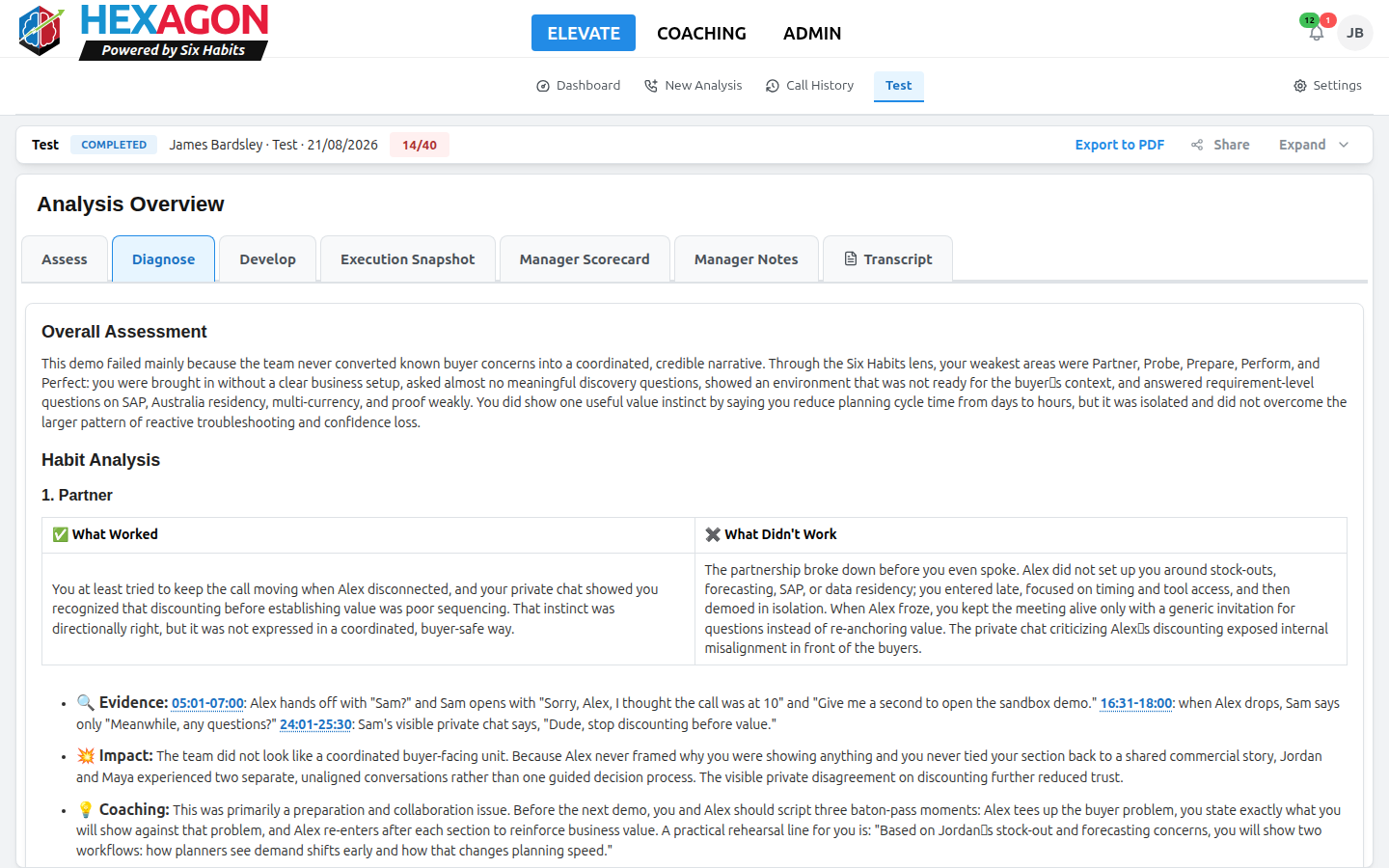
The Six Habits assessment. It opens with an Overall Assessment, then covers the six habits one by one (Partner, Probe, Prepare, Practice, Perform, Perfect). For each habit there is a two-column table of What Worked and What Didn't Work, followed by the Evidence from the call, the Impact it had, and the Coaching that follows from it. A Final Coaching Summary closes the tab.
Develop
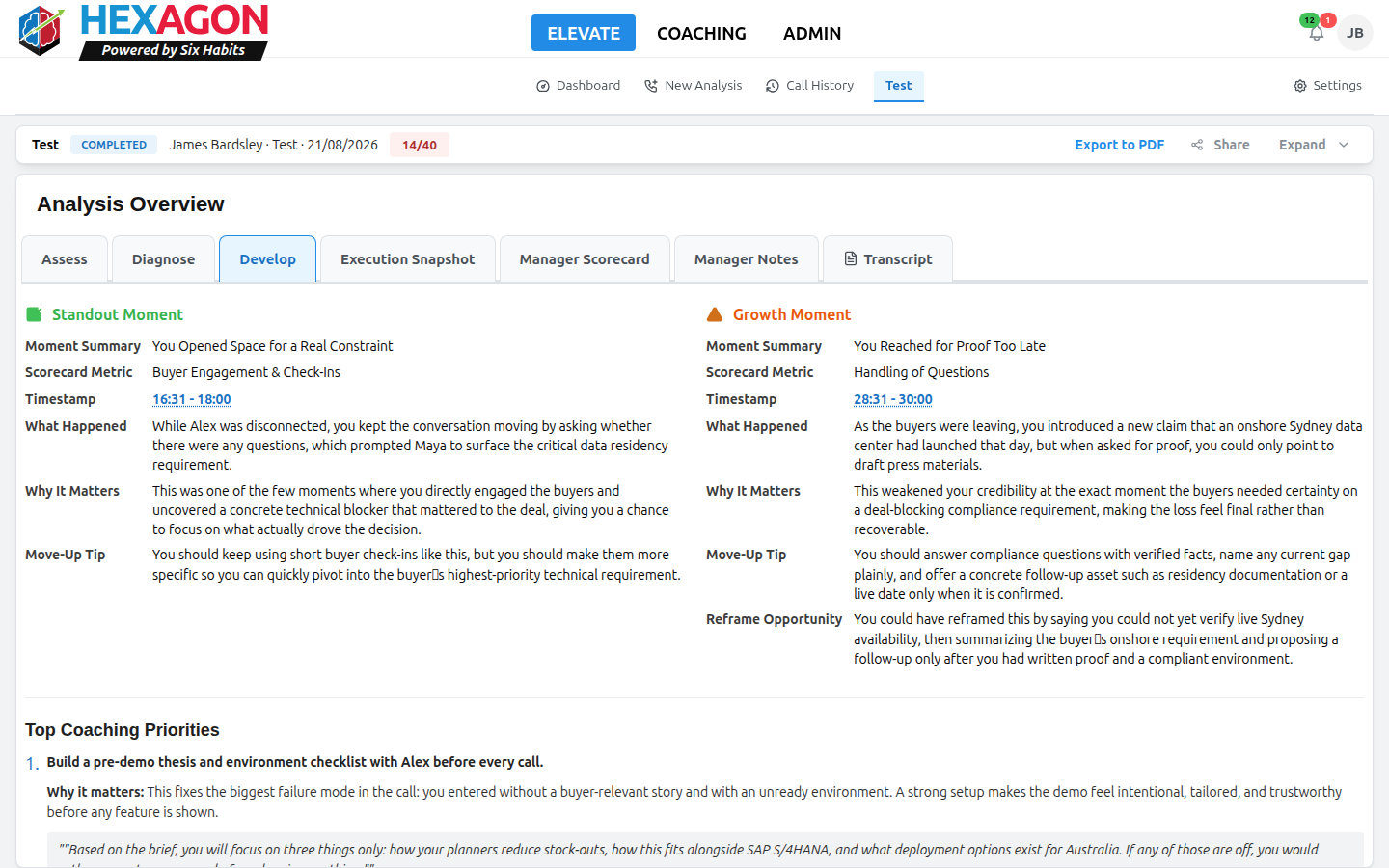
The two moments that matter most, side by side: a Standout Moment and a Growth Moment. Each names the metric it belongs to, the timestamp in the call, what happened, why it matters and a Move-Up Tip. The growth moment also has a Reframe Opportunity: a better way to have handled it. Below them, Top Coaching Priorities lists the few things to practise before the next call, each with why it matters and an example of better wording.
Execution Snapshot
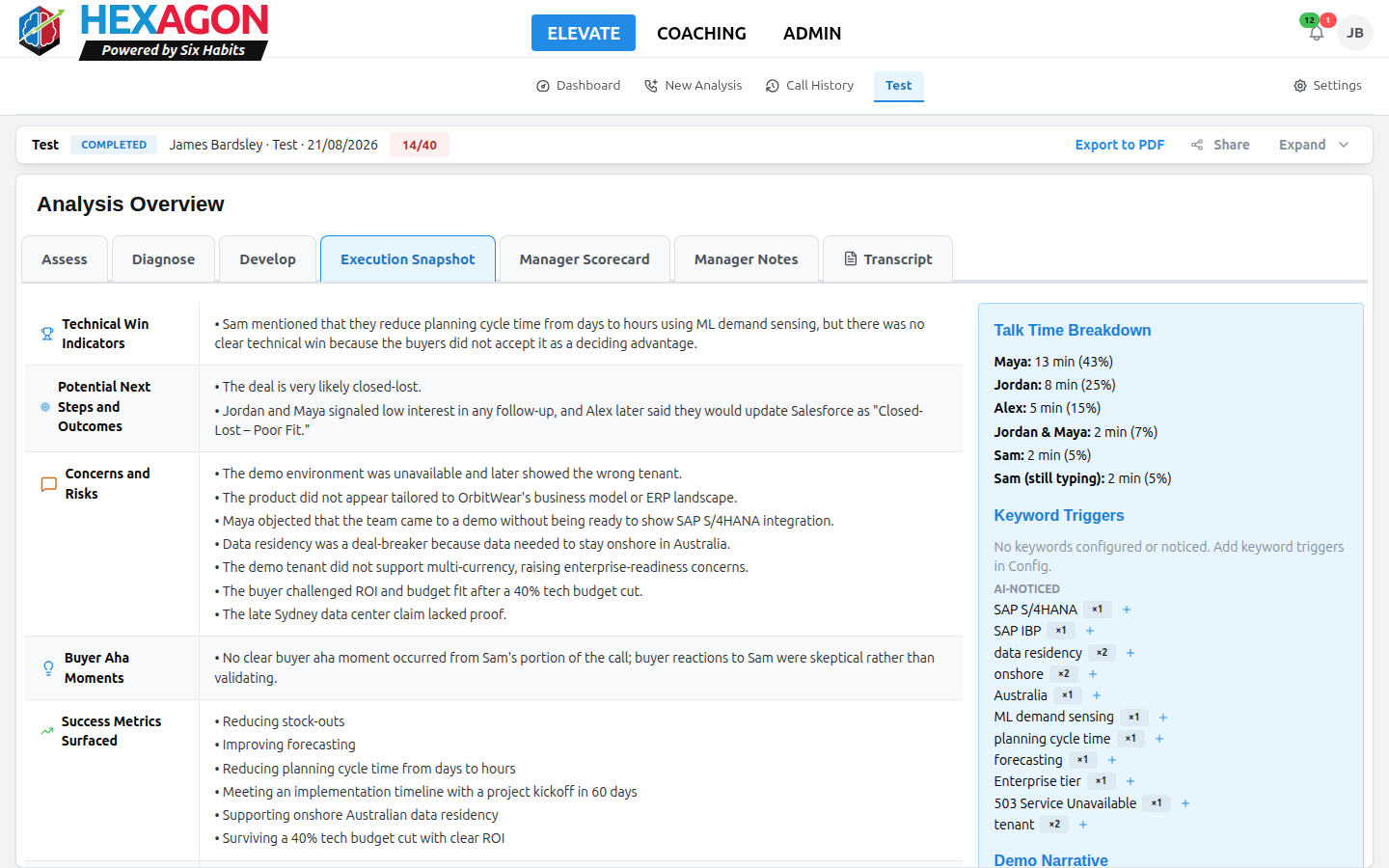
This tab is about the deal, not the coaching. It lists Technical Win Indicators, Potential Next Steps and Outcomes, Concerns and Risks, Buyer Aha Moments, Success Metrics Surfaced and Competitor Mentions. The sidebar shows the Talk Time Breakdown per speaker, Keyword Triggers with how often each came up, and the Demo Narrative.
Competitors and keywords come in two groups: the ones your organisation configured, and ones the AI noticed on its own. Managers can click the plus beside an AI-noticed term to add it to the configured list for future analyses.
Transcript
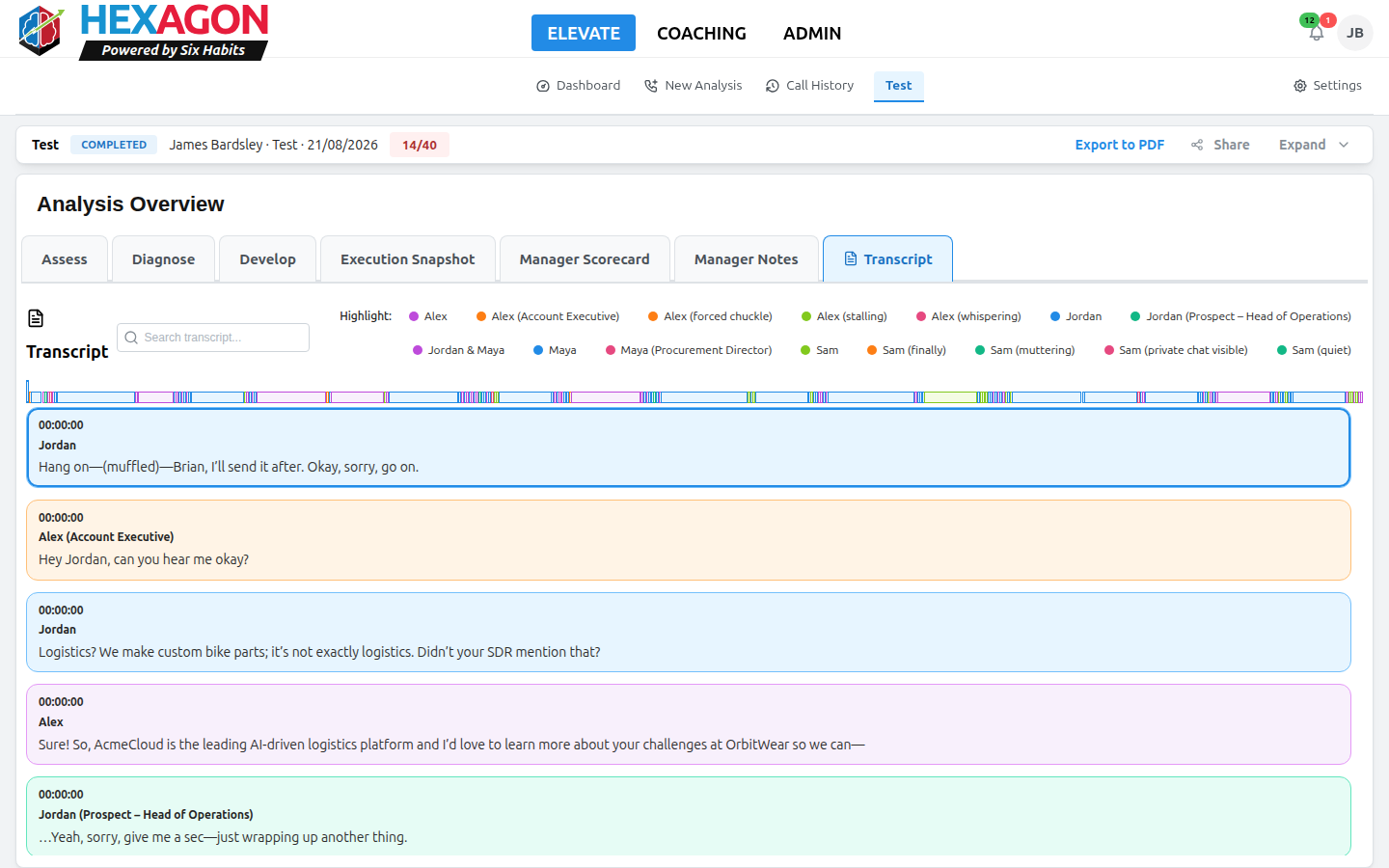
The full transcript, one coloured card per line with its time and speaker. Three ways to move around:
- Search: type in the box and step through matches with the arrows, or Enter and Shift+Enter.
- Highlight by speaker: click a speaker's label to show only their lines. Click several to show them together.
- The timeline bar across the top: one segment per line, coloured by speaker and sized by how long it lasted. Click a segment to jump there.
Any timestamp mentioned in the other tabs, such as "8:26" in a growth moment, is a link. Click it to go to that line of the transcript.
Export and share
- Export to PDF opens your browser's print window with every tab laid out in order; tick Include Transcript to add the transcript at the end, then choose "Save as PDF".
- Export to Excel (in the expanded header) downloads a workbook with a sheet per tab, plus a Six Habits sheet with the habit scores that are not shown on screen.
- Share copies the page's address. It is not a public link: whoever opens it must sign in and be allowed to see the call. The address can carry the tab and the transcript position, so you can send a colleague straight to one moment.