
Analysing a new call
Click New Analysis in the Elevate bar (or the button on your dashboard). The form is one page with three steps, and takes about a minute to fill in. You need the call's transcript as a plain-text file, and one credit.
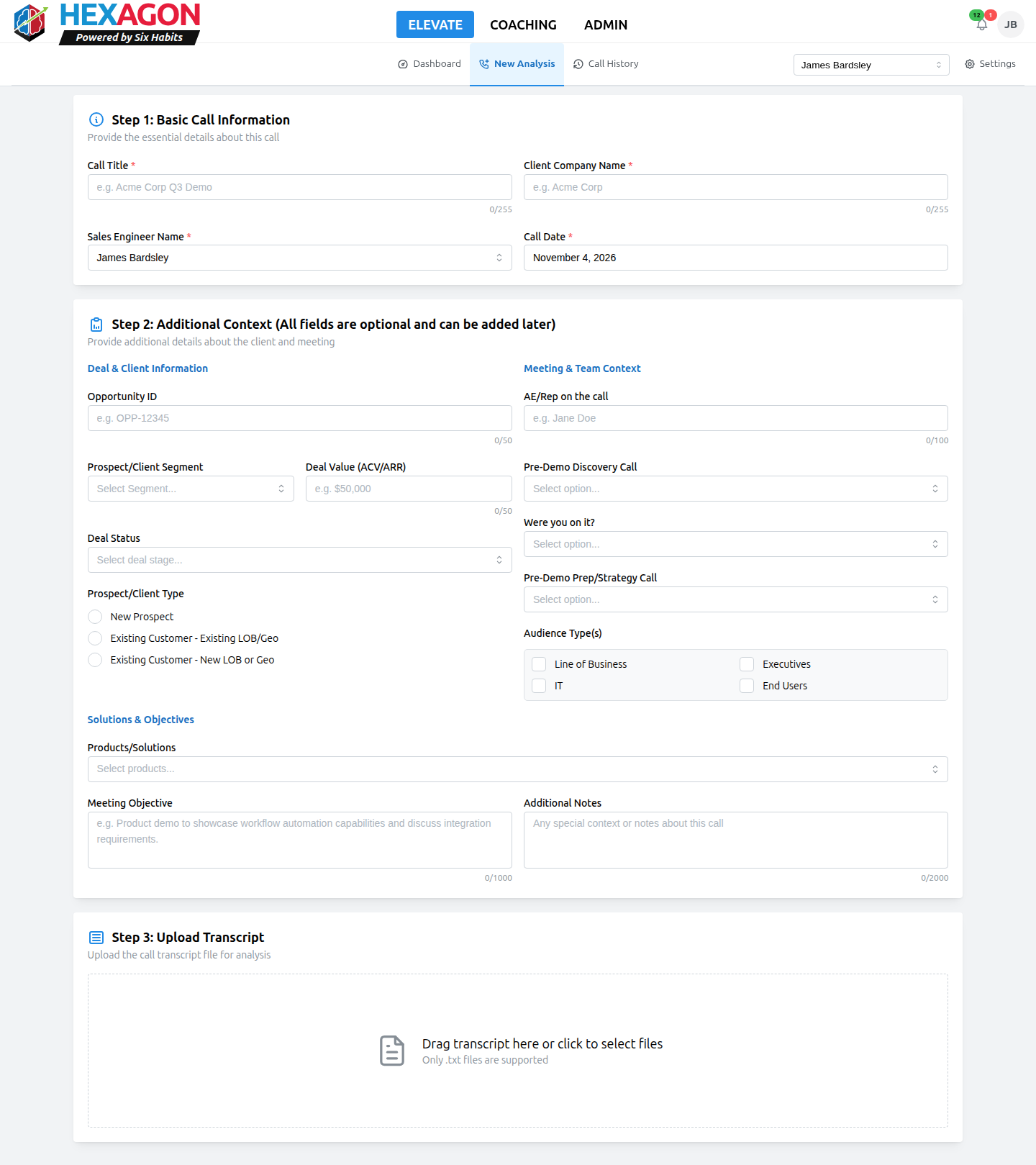
Step 1: Basic Call Information
Four required fields:
- Call Title, for example "Acme Corp Q3 Demo". This is the name the call is listed under everywhere in the app.
- Client Company Name, the prospect or customer the demo was for.
- Sales Engineer Name. If you are an SE, this is always you. An SE Manager can pick anyone on their Team, and an SE Admin anyone in the organisation.
- Call Date, the day the demo happened. It defaults to today and cannot be in the future.
Step 2: Additional Context
Everything in this step is optional, and you can fill it in later from the call page. None of it affects the score. It is there so that reports and filters can tell calls apart.
| Group | Fields |
|---|---|
| Deal & Client Information | Opportunity ID, Prospect/Client Segment, Deal Value, Deal Status, and whether this is a new prospect or an existing customer |
| Meeting & Team Context | The account executive (AE) on the call, whether there was a discovery call and a prep call beforehand (and whether you were on them), and the Audience Type(s) in the room |
| Solutions & Objectives | Products/Solutions covered, the Meeting Objective, and Additional Notes |
The dropdown choices (segments, deal stages, products, audience types) are set by your organisation on the Configuration page.
Step 3: Upload Transcript
Drag a .txt file onto the box or click to choose one. Only plain-text files are accepted; export the transcript from your meeting tool as text first. The upload starts straight away and shows the file name and size when it is done.
Take care with the Remove button beside the file: it clears the whole form, not just the file.
Detected Call Participants
Once the transcript is uploaded, Hexagon lists the speakers it found. Check each one:
- Participant Name: edit it if the transcript gave the speaker an unclear label.
- Role: Primary Sales Engineer, Other Sales Team Member, Buyer Team Member, or Unknown.
Getting the Primary Sales Engineer right matters most. That is the person the coaching is written for. A call with no Primary Sales Engineer fails at the first stage of the analysis.
Analyze Call
The button appears under the participants once a transcript is uploaded. Click it and you are taken back to your dashboard with an "Analysis submitted" message. The call now appears in the bell, under Analyzing.
While it runs
Analysis takes a few minutes. Click the call in the bell, or in Call History, to watch it move through nine stages:
- Checking participants
- Preparing transcript
- Coach scoring
- Panel discussion
- Final scoring
- Highlights & key moments
- Six Habits assessment
- Feedback wording
- Finalising results
The page switches to the results by itself when the last stage finishes. If you have email notifications on, you get an email too.
If it fails
The progress page turns into "Analysis failed", marks the stage it stopped at, and explains why in plain words. The two common causes are a transcript that is not really a sales conversation (no SE could be identified) and a file that is empty or unreadable. Most other failures are temporary, and a manager or admin can Re-analyse the call without using another credit. The failure also shows in the bell under Failed until you dismiss it.